

Find Color
Find specified multiple color points in device screenshot, supports relative and absolute coordinate modes, configurable similarity threshold and finding all matching locations.
💡 Quick Color Picker
You can use the quick color picker in the console developer tools to quickly get screen coordinates and color value arrays.
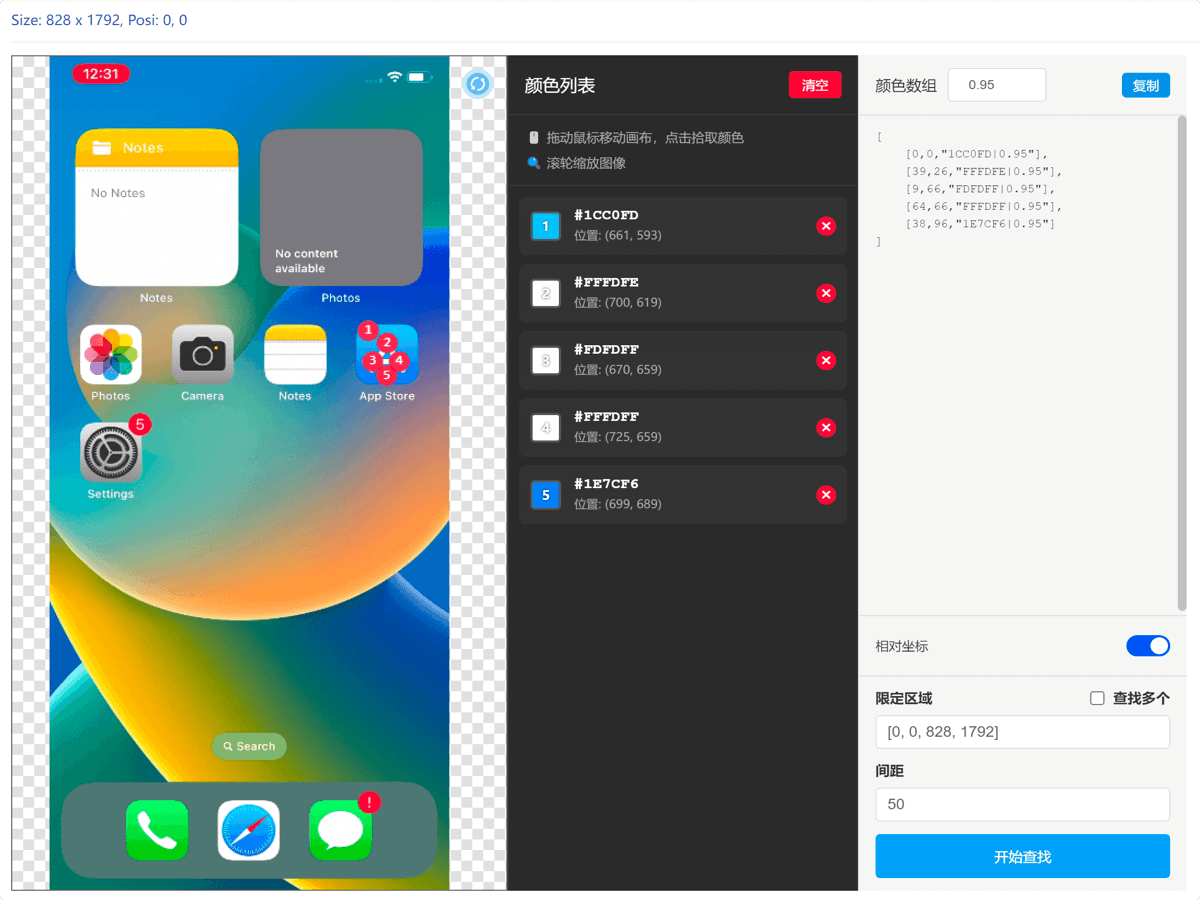
Interface Description
Interface Type
findColorParameters
| Parameter | Type | Required | Description |
|---|---|---|---|
| deviceId | string | Yes | Device ID |
| colors | array | Yes | Color array, format: [[x, y, "color"], ...] or [[x, y, "color|similarity"], ...] |
| rect | array | No | Search area [x1, y1, x2, y2], required in relative coordinate mode, not needed in absolute coordinate mode |
| multiple | boolean | No | Whether to find all matching locations, default false, not needed in absolute coordinate mode |
| spacing | number | No | Minimum distance between results (pixels), default 50, only effective when multiple=true |
Return Value
Single Match (multiple = false or absolute coordinate mode):
javascript
{
    x: 100,  // X coordinate of match point
    y: 200   // Y coordinate of match point
}
Multiple Matches (multiple = true):
javascript
[
    { x: 100, y: 200 },
    { x: 150, y: 250 },
    { x: 200, y: 300 }
]
No Match Found:
javascript
nullFeature Description
Coordinate Modes
findColor supports two coordinate modes:
1. Absolute Coordinate Mode
In absolute coordinate mode, all points use screen absolute coordinates:
- No need for
rectandmultipleparameters - If all color points match, returns the first point's coordinates
Example:
javascript
// Absolute coordinates: all points are screen absolute coordinates
colors: [
    [245, 509, "00B4F9|1"],   // Absolute coordinate (245, 509)
    [284, 745, "A49696|0.95"], // Absolute coordinate (284, 745)
    [290, 911, "9B8C89"]      // Absolute coordinate (290, 911)
]
2. Relative Coordinate Mode
When the first point of the color array is [0, 0], relative coordinate mode is used:
- The first point
[0, 0]serves as the reference point, searched within therectarea - Other points' coordinates are relative to the first point
- Can provide
rectparameter to define search area - Supports
multipleparameter to find all matches
Example:
javascript
// Relative coordinates: first point is [0,0], other points relative to first point
colors: [
    [0, 0, "00B4F9|1"],      // Reference point
    [39, 236, "A49696|0.95"], // Relative offset from reference point (39, 236)
    [45, 402, "9B8C89"]      // Relative offset from reference point (45, 402)
]
Basic Usage
Example 1: Absolute Coordinate Mode
javascript
// Verify if multiple absolute coordinate points on screen match
const result = await apiInvoke('findColor', {
    deviceId: 'P72578581E07',
    colors: [
        [245, 509, "00B4F9|1"],   // Absolute coordinate point 1
        [284, 745, "A49696|0.95"], // Absolute coordinate point 2
        [290, 911, "9B8C89"]      // Absolute coordinate point 3
    ]
    // No need for rect and multiple parameters
});

if (result) {
    console.log(`All color points match, reference point at (${result.x}, ${result.y})`);
} else {
    console.log('Color points do not match');
}
Example 2: Relative Coordinate Mode - Find All Matches
javascript
// Find all matching locations
const results = await apiInvoke('findColor', {
    deviceId: 'P72578581E07',
    colors: [
        [0, 0, "FFFFFF|0.9"],
        [10, 10, "000000|0.9"]
    ],
    rect: [0, 0, 800, 1200],
    multiple: true,
    spacing: 50  // Minimum distance between results
});

if (results && results.length > 0) {
    console.log(`Found ${results.length} matching points`);
    results.forEach((point, index) => {
        console.log(`Match point ${index + 1}: (${point.x}, ${point.y})`);
    });
}